
🔠Closed Captions and Live Transcription
Whether you have a court hearing or meeting with an attorney, you can turn on closed captioning or live transcription on your video meeting. This can be helpful if you are hard of hearing. In general, the meeting host needs to enable closed captions for the meeting but there are ways you can request them if they have not yet been set up. Learn more about the closed captions option in Zoom with their help article.
Ask for live transcription
If live transcription is not enabled, but you would like it to be, you can ask the host enable for this meeting without interrupting them directly.
Click Live Transcript (CC) You will be prompted to confirm your request to have live transcription enabled by the host.
(Optional) Click Ask Anonymously to make this request without your name tied to it. The host will just be notified that a participant in the meeting would like this feature enabled.
Click Request to confirm. If the host approves the request, live transcription will begin.
Adjust the caption size
Next to Start Video / Stop Video, click the up arrow ^
Select Video Settings, then click Accessibility.
Under Closed Captions, move the slider to adjust the caption size.
When a participant or attendee requests live transcription be enabled, you will be prompted with the request. This request can be made anonymously, so you may not see the name of the participant requesting this feature.
Choose one of the following options:
Enable: Enables live transcription for use of anyone in the meeting or webinar.
Decline: Decline this request to have live transcription enabled. Other participants will be able to make their own requests.
Decline and don't ask again: Decline this and all future requests to have live transcription enabled.
Setting up live closed captions
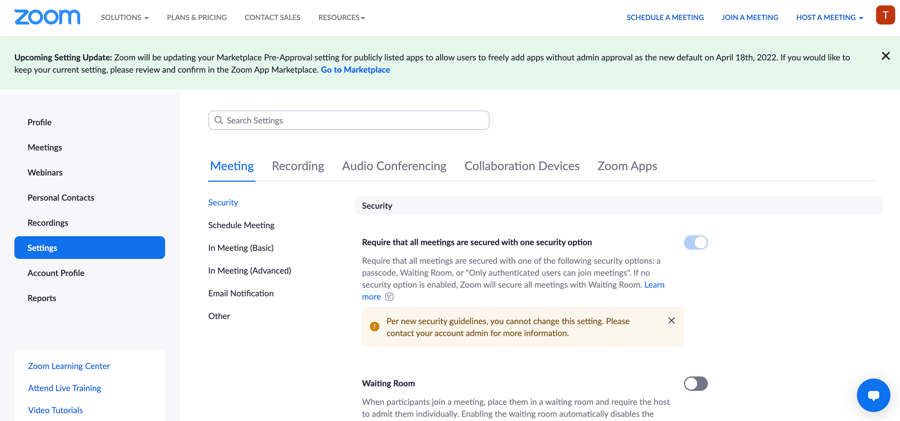
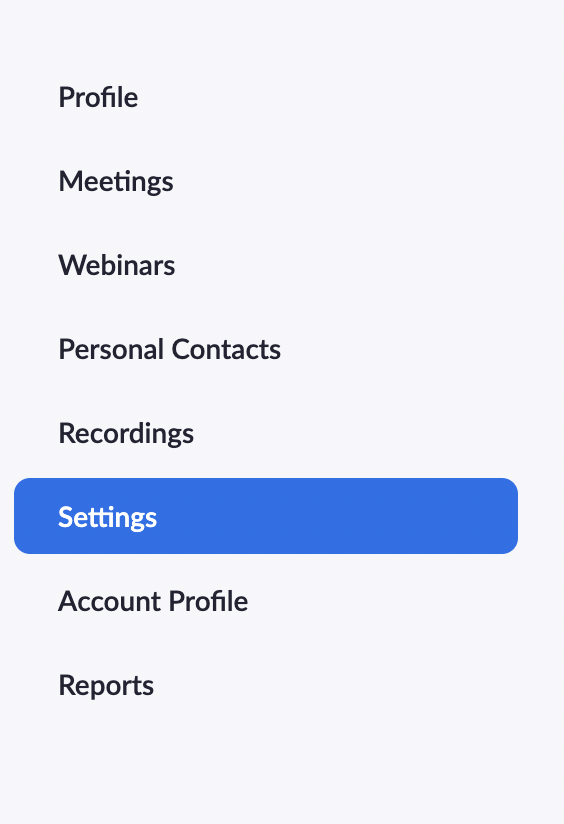
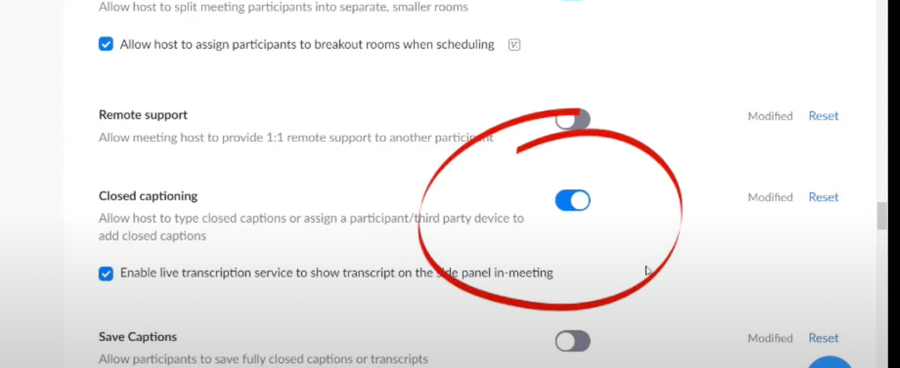
Before closed captions can be turned on, they must be enabled in the meeting. If closed captions are not enabled in your meeting, contact the meeting organizer. If you are the meeting organizer, you can enable or disable closed captioning. For more information, visit the support article on how to enable or disable closed captioning and live transcription.
Limitations of real-time closed captions
Live transcription currently only supports English and the accuracy of the feature depends on many variables, such as but not limited to:
Background noise
Volume and clarity of the speaker’s voice
Speaker's proficiency with the English language
Lexicons and dialects specific to a geography or community
Starting Closed Captions in a Zoom Meeting
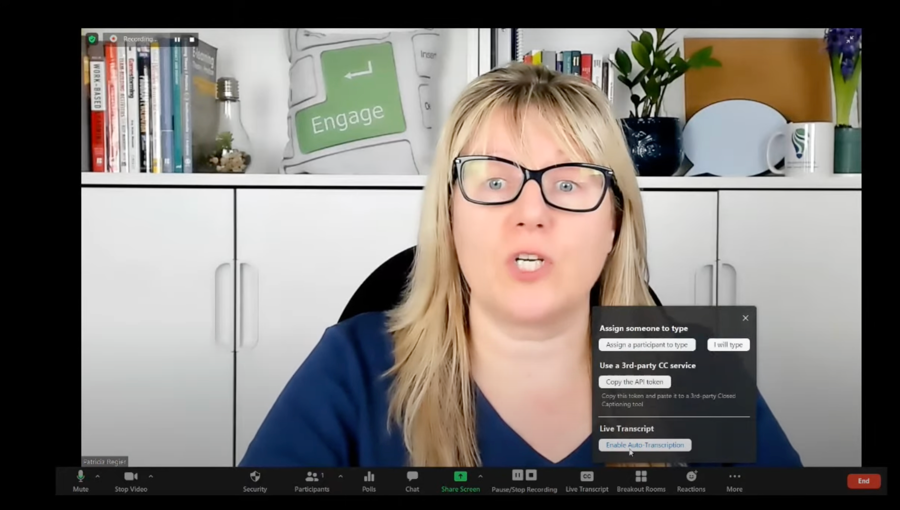
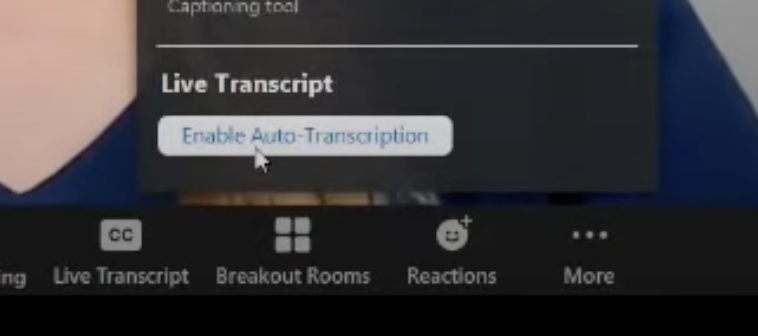
The meeting host should click Closed Caption (CC)
Select one of the following options:
Assign a participant to type: Assigns a participant to type closed captions during the meeting.
I will type: Opens the closed captioning window for you to manually type closed captions.
Copy the API token: Copy the URL that you can provide to a third-party closed captioning service to integrate the service with your meeting.
Enable Auto-Transcription: Allows the system to start providing live transcription. Participants will be notified that this service is available. This option is only available if enabled in web settings.
Last updated